
Finishing a vertical reel: audio, stabilisation, encoding, safe zones and QC
What happens to a reel after the edit: the dialog chain, LUFS targets, measured shake, H.264 settings, safe zones, the cover image and the QC gate every file passes.
Tags: Post-productionAudioDelivery
When the edit is locked, a reel is about half done. The other half is the part viewers never notice but feel straight away: audio that does not distort on a phone speaker, a shot that does not wobble, a title that is not hidden under the caption, a video that starts without stalling. As of September 2026 we have delivered 745 reels from 718 shoot days for 93 brands. This post covers the steps those reels go through after the edit.
It is written for two readers. If you run marketing for a hotel, restaurant or brand, you will see what you can ask of a production partner and what to check in the file you receive. If you work in video, you will find the settings we use and why we chose them.
Why check audio before picture?
Viewers forgive a slightly soft image. They do not forgive hiss or pumping audio. Most Reels are watched on a phone speaker or earbuds, often somewhere noisy. Either the audio is clear or the video gets skipped.
We treat audio in three layers: dialog (interviews, voice-over), music and ambience. Each layer has its own target, and the final mix is judged by a single number.
What is LUFS, and why not just dB?
LUFS is the perceptual loudness measure defined in ITU-R BS.1770. It measures how loud the programme sounds on average, not its highest sample. The integrated value is the average over the whole piece. True peak (dBTP) also accounts for peaks that form between samples; when a platform re-encodes the file, those peaks can turn into distortion.
Broadcast works to −23 LUFS under EBU R 128. Social media does not; at that level you sound quiet next to everything else in the feed.
Target levels for Reels
| Layer | Target | Note |
|---|---|---|
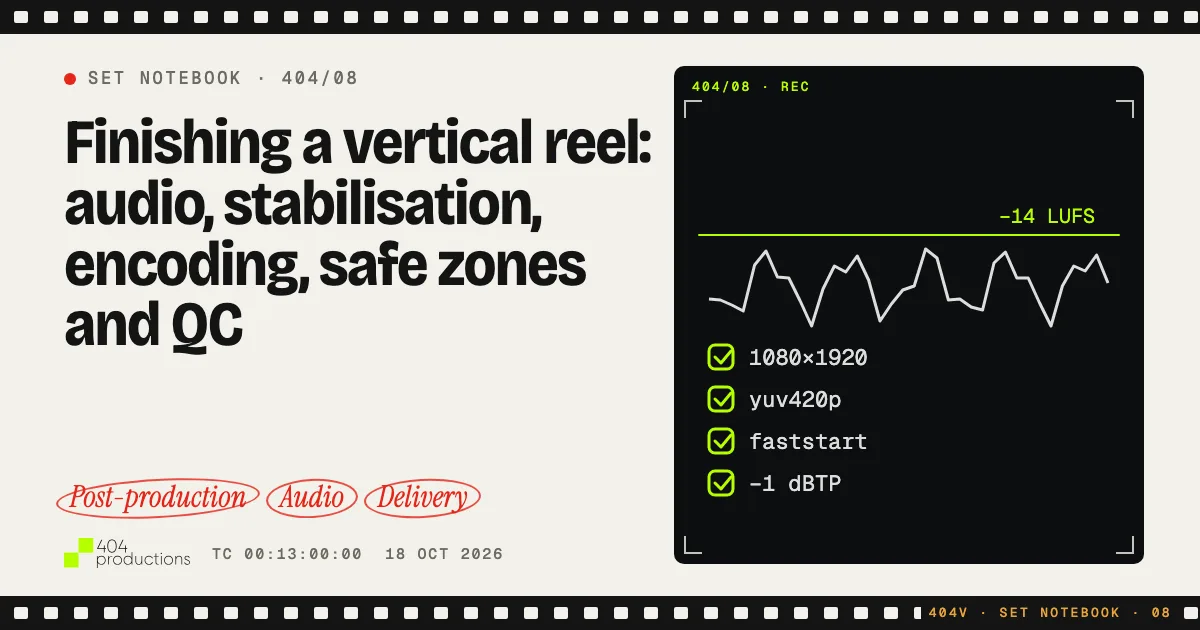
| Delivered file (integrated) | ~−14 LUFS | No official Meta figure; a working reference |
| True peak | ≤ −1 dBTP | Headroom for the platform’s re-encode |
| Dialog | ~−16 LUFS, peaks ≤ −2 dBFS | Music brings the total up to ~−14 |
| Music bed under speech | ~−24 LUFS | Under the voice, never on top of it |
| Music under voice-over | ducked ~9 dB | Comes back up when speech ends |
An honest note: Instagram and Facebook publish no loudness target for Reels. −14 LUFS is a reference we settled on by listening on phone speakers and earbuds, and it is widely used across the industry. Going louder buys nothing; it only squashes the peaks and makes the audio tiring.
How do you raise quiet dialog without pumping?
People interviewed in their own venue are rarely used to a microphone. They speak softly and swallow the ends of sentences. A raw recording can sit around −30 LUFS. Getting it to −16 means 14 dB of gain, and how that gain is applied decides everything.
Our dialog chain
The order matters; each step makes the next one easier:
- High-pass filter at 80 Hz. Cuts air-conditioning hum, a glass set down on the table, wind. The body of the human voice sits above it.
- Gentle compression. Threshold −26 dB, ratio 2.5:1, attack 12 ms, release 220 ms. The aim is not to flatten the voice, only to narrow the gap between the loudest and quietest syllables a little.
- Fixed gain. The gain needed to reach the target is applied as one value. The level does not move over time.
- Limiter. Holds peaks at about −2.5 dBFS and only touches the occasional loud burst.
Written for ffmpeg:
highpass=f=80,
acompressor=threshold=-26dB:ratio=2.5:attack=12:release=220,
volume=<fixed gain>dB,
alimiter=limit=0.75:attack=5:release=60:level=disabled
Why loudnorm makes quiet recordings pump
ffmpeg’s loudnorm filter looks convenient: give it a target and it does the rest. In linear mode it really does apply only a fixed gain. But as its documentation states, if the requested gain would push the true peak past the target, or the target loudness range is narrower than the source’s, the filter quietly falls back to dynamic mode.
Dynamic mode keeps re-adjusting the level. It raises room noise in the gaps between sentences and pulls it down when speech starts; the audio “breathes” and transients get crushed. Our editors call it “the sound blowing up”. For dialog that needs a lot of gain we therefore skip loudnorm and apply the gain ourselves with the chain above.
We check the result with numbers as well as ears: we count samples above −2 dBFS and compare the 400 ms RMS percentiles against the source. If the noise floor rose out of proportion, something in the chain is wrong.
Voice isolation: never 100 %
DaVinci Resolve’s Voice Isolation rescues recordings from a loud kitchen or a busy dining room. Pushed to 100 %, though, the voice turns metallic, as if spoken underwater. Between 50 and 70 % it clearly reduces the background while keeping the voice natural. A little room tone is not a problem; it reminds the viewer where they are.
Music and ducking
We place music on its own track as prepared stems: trimmed, gained to target, with fades already in. When the voice-over starts, the music drops by about 9 dB. A music bed under speech sits around −24 LUFS. In longer films we put music under long passages without speech, not under every short pause; constant music wears the ear out.
Licensing records are part of delivery too: which track, from whom, under which licence. That record sits next to the music file in the client’s folder.
How do you measure and fix camera shake?
“It’s a bit shaky” is not a measurement. We measure every edit before grading: ffmpeg’s libvidstab analysis extracts camera motion per shot, and we report the deviation from the intended move as jitter RMS in 1080p pixels.
| Jitter RMS (1080p px) | Rating | What we do |
|---|---|---|
| < 1.5 | Clean | Leave it |
| 1.5–4 | Mild | Trim first, light stabilisation if needed |
| > 4 | Strong | Trim and stabilise, or replace the shot |
The report carries a second number: how differently motion behaves across regions of the frame. When hands rolling dough fill the frame, their movement can look like camera shake. We look at those shots before stabilising them; a stabiliser that tries to correct the hands makes the background swim.
The order of fixes
- Trim first. Most shake lives in the first or last half-second of a take, when the operator has just settled or is finishing the move. Cutting it often solves the problem.
- Then stabilise. Perspective mode for handheld; Similarity when the perspective wobbles; Camera Lock for shots meant to be locked off. Zoom on.
- Use the resolution headroom. Stabilising crops the edges, and cropping means scaling up. A shot filmed in 4K with the camera turned vertical can take a 2× push in a 1080×1920 frame. A 9:16 crop from landscape 4K leaves only about 1.1×, so any stabilisation shows up as softness straight away. We stabilise before any reframing zoom and check the edges.
- Do not try to stabilise rolling shutter away. The jello from a sensor read out line by line during fast moves does not improve with stabilisation and often gets more visible. Shorten the shot, replace it, or crop tighter.
- Measure the render again. The number tells you whether the fix worked.
The cheapest stabilisation happens on set
Close-ups of food and product are where most jitter comes from, so we shoot them on a tripod or gimbal. On Sony bodies SteadyShot Active is on, and we shoot 50p at 1/100 s. Natural motion blur hides micro-shake, and 25p delivery keeps slow motion available. Framing slightly wider than the final crop gives the stabiliser room. On DJI Pocket 3, Action 5 and Avata 2, built-in stabilisation stays on and digital zoom stays off. The rest of the shoot day is in our shoot-day playbook.
Which encoding settings work for Reels?
The platform re-encodes whatever you upload; viewers see its copy, not your file. That does not make the settings irrelevant. The cleaner the source for that second encode, the better the result, and an unusual file may be rejected or published with the wrong colour.
Our master settings
- Container and codec: MP4, H.264 High profile. H.265/HEVC is more efficient but does not behave as reliably across every upload path and device.
- Resolution: 1080×1920, 9:16.
- Pixel format: yuv420p, i.e. 8-bit 4:2:0. Cameras can record 10-bit 4:2:2, but many phones and browsers will not play 4:2:2 H.264. We make that conversion deliberately in the delivery file.
- Frame rate: keep the source rate. 25p footage is delivered at 25p, 50p at 50p.
- Bitrate: 12–16 Mbps. This is a community figure, not something Meta publishes. We have used around 23 Mbps before; it made no visible difference and only made uploads slower.
- Multipass encoding: the encoder analyses the video first and spends bits on the hard scenes (steam, water, confetti, fast camera moves).
- Colour tags: BT.709 primaries, transfer and matrix (1-1-1). We never use the Apple-only Rec.709-A tag, which causes a gamma shift on other devices. The full colour path is in our post on the colour pipeline from log to delivery.
- Audio: AAC, 48 kHz, stereo.
- +faststart: see below.
25p or 50p?
Turkey’s mains run at 50 Hz, so we shoot in multiples of 25 to avoid flicker from venue lighting. We usually shoot 50p and mostly deliver 25p. Converting 50p to 25p is a decision, not a default: motion looks less fluid, and a 1/100 s shutter at 25p equals a 90° shutter angle, so fast movement can look slightly staccato. For gyms and fight clubs, where the motion is the story, we consider a 50p delivery separately. Our QC gate expects 25 or 30 fps, so a 50p delivery needs explicit sign-off.
+faststart: moov before mdat
An MP4 file has two main parts. mdat holds the picture and sound data; moov holds the index to it. Encoders write moov at the end by default, because the index is only known once encoding finishes. A player then has to reach the end of the file before it can start.
+faststart moves the index to the front. In ffmpeg it is -movflags +faststart; in Resolve it is the Network Optimization option. YouTube’s recommended upload settings also ask for the moov atom at the front of the file. For us it is a hard rule: if the atom order is not ftyp, moov, …, mdat, the file fails QC.
Where is the safe zone in a vertical reel?
Not all of a 1080×1920 frame is visible. Instagram shows the account name at the top, the caption and music label at the bottom, and the like, comment and share buttons on the right. The limits we use, from our own measurements:
- Top ~220 px: under the interface.
- Bottom ~320–400 px: caption text and music label. A long caption climbs higher.
- Right ~120 px: engagement buttons.
- Safe area for text and logos: roughly y = 250–1500 px, away from the right edge.
Reels run as ads carry a call-to-action button and ad label that take more room at the bottom, so we keep text higher there. The profile grid crops the frame further, so titles stay close to the centre. Where the hero and the title sit in the first second is covered in more depth in anatomy of a venue reel.
One more warning: fine grain and gentle sharpening help against compression, but flat gradients such as painted walls, steel counters and skies are prone to banding after re-encoding. We look at those areas specifically before delivery.
Why are the cover image and the file name part of delivery?
The cover (we call it the Kapak) is the reel’s face on the profile grid. It comes from the reel’s strongest frame or from a still shot the same day. The cover file carries exactly the same name as the reel, with only a .jpg or .png extension, and lives in the cover folder of the delivery. A simple rule, but it pays off: months later, when you want to repost a reel or swap its cover, the two never lose each other.
File names follow a fixed pattern:
07_Brand - Breakfast Plate.mp4
07_Brand - Breakfast Plate.jpg
A two-digit sequence number, the brand’s short name, space-dash-space, the title. A delivered file name never contains “final”, “son” (Turkish for final), “new”, “V2”, “copy” or “(1)”. Versions are tracked in our records; the delivered file has one name.
Turkish characters need extra care. macOS can write letters such as “ğ”, “ş” and “ü” as two separate code points (NFD). Two names that look identical on screen are different bytes, and that is where files that will not open over the network share, or “vanish” from an archive, come from. We always write delivery names in composed form (NFC). In a 44.8 TB archive, that small rule saves a lot of time.
The QC gate: which checks does every reel pass?
No file leaves the studio on “looks fine to me”. Every reel goes through the same list, and every item is measured with a tool.
| Check | Expected | How it is verified |
|---|---|---|
| Resolution | 1080×1920 | ffprobe: width, height |
| Codec and profile | H.264 High | ffprobe: codec_name, profile |
| Pixel format | yuv420p | ffprobe: pix_fmt |
| Frame rate | 25 or 30 fps | ffprobe: r_frame_rate |
| Bitrate | ~12–16 Mbps | ffprobe: bit_rate (read from the file, since render settings are not echoed back) |
| Colour tags | BT.709 | ffprobe: color_primaries, color_transfer, color_space |
| Audio | Present, AAC 48 kHz | ffprobe: audio stream, sample_rate |
| Loudness | ~−14 LUFS integrated | ffmpeg ebur128 filter |
| True peak | ≤ −1 dBTP | ffmpeg ebur128=peak=true |
| Fast start | moov before mdat | Atom order at the head of the file |
| Cover | Same name, in the cover folder | File name comparison (NFC) |
| File name | NN_Brand - Title.mp4, NFC |
Pattern check |
One command covers loudness:
ffmpeg -i "07_Brand - Breakfast Plate.mp4" -af ebur128=peak=true -f null -The summary at the end of the output gives the integrated loudness (I), the loudness range (LRA) and the true peak.
Part of the list is done by eye: is any shaky shot left, is text inside the safe zone, is the first frame right, is there banding in the gradients? Numbers do not catch these, so before anything is published we watch the file on a phone, under the app’s interface.
Our checkers report; they never touch the files. If an item fails, the editor decides on the fix and the file goes through the gate again.
What to check when a production partner delivers a reel
You do not need to work in video to judge a delivery:
- Watch it on a phone with the sound on, through the speaker. Is speech clear, or does the music bury it?
- Listen on earbuds, then in a quiet room. If hum rises in the quiet moments, the audio may have been pumped with too much gain.
- In the app, do the titles and logo stay clear of the caption and the buttons?
- Does the file name contain “final” or “last”? Then more than one version may be in circulation.
- Does every reel have a cover with the same name?
If you can answer yes to all of these, the delivery has most likely been through a sound process. You can see how we work on our services page, and if you would like to plan a reel for your venue, get in touch.
Frequently asked
How loud should an Instagram Reel be in LUFS?
Meta publishes no official LUFS figure. We deliver at about −14 LUFS integrated with a true peak no higher than −1 dBTP, which sits comfortably next to other videos in the feed on a phone speaker. We measure with the ITU-R BS.1770 method using ffmpeg's ebur128 filter.
What bitrate and codec should I use for Reels?
H.264 High profile, yuv420p, MP4 container, AAC 48 kHz audio. For a 1080×1920 reel, 12–16 Mbps is enough; that is a community figure, not a published Meta spec. The platform re-encodes the file anyway, and a clean master gives that second encode a good starting point.
Where should text go in a vertical reel?
In a 1080×1920 frame we keep text and logos between roughly y = 250 and 1500 px and about 120 px in from the right edge. The top ~220 px, the bottom ~320–400 px and the right edge sit under the Instagram interface. Reels run as ads need an even larger clear area at the bottom.
Can stabilisation fix a shaky shot?
Mild and moderate shake usually yes: first trim the shaky first or last half-second, then stabilise. Rolling-shutter wobble (jello) cannot be stabilised away; shorten the shot, replace it or crop tighter.
What does +faststart do in an MP4?
It moves the file's index (the moov atom) in front of the media data (mdat), so a player can start playback before the whole file has downloaded. In ffmpeg it is -movflags +faststart; in DaVinci Resolve it is the Network Optimization option.
Sources
What this piece draws on
- itu.intITU-R BS.1770-5: Algorithms to measure audio programme loudness and true-peak audio level
- tech.ebu.chEBU R 128: Loudness normalisation and permitted maximum level of audio signals
- ffmpeg.orgFFmpeg Filters Documentation (loudnorm, ebur128)
- ffmpeg.orgFFmpeg Formats Documentation (MOV/MP4 muxer, faststart)
- support.google.comYouTube Help: Recommended upload encoding settings