
From log footage to delivery: colour management and an editable grade for venue reels
How Sony S-Log3, DJI D-Log M and iPhone footage end up in one colour language: colour management, camera transforms, a labelled node tree and delivery settings.
Tags: Post-productionColourDaVinci Resolve
On a typical shoot day for a hotel or a restaurant we use three camera families. A Sony A7S III, A7 IV or A7R III covers the dining room and the plates. A DJI Air 3 or Mavic 3 takes the façade and the sea, and an Avata 2 flies the shot that glides in through the door. In a tight corner of the kitchen an Osmo Pocket 3 or Action 5 comes out, and for a quick vertical shot, an iPhone. In the edit they all sit side by side in one 1080×1920, 25p reel.
Viewers don’t tell cameras apart. But they do notice when the tablecloth is cream in one shot and bluish white in the next, or when the sea in the drone shot drifts towards green. This post explains how we close that gap, and why we always leave the colour open for someone else to change. We covered the logistics of the shoot day in another post and the creative decisions behind a reel in the anatomy of a venue reel.
What is log footage, and why shoot it?
A camera’s standard profile records the image so that it looks good on screen straight away: contrast added, colours saturated, highlights clipped. A log profile does the opposite. It compresses a wide range of light into the recording with a logarithmic curve. On screen the image looks grey and flat, but the information is there.
In a venue the difference is concrete:
- The table by the window. Dim inside, midday sun outside. In a standard profile the window clips to white; in log the trees outside can be brought back.
- Kitchen lights. Spotlights under the extractor hood and stainless steel make hot spots. Log keeps the texture around them.
- Mixed light. Daylight, warm bulbs and an LED strip can share one frame. Setting white balance in the edit is far cleaner than rescuing a wrong value baked in on set.
The price of log is discipline. Every clip has to be transformed with full knowledge of which camera and which profile it came from. A wrong transform is harder to spot than a wrong exposure: the image just looks “a bit off” and nobody can say why.
Colour management: one working space for every camera
The first step in making different cameras look alike is translating them all into the same language. In DaVinci Resolve you can do that in two ways.
Resolve Color Management (RCM)
In project settings you set the colour science to “DaVinci YRGB Color Managed”, choose DaVinci Wide Gamut as the timeline colour space and DaVinci Intermediate as its gamma. Each clip gets an input colour space; Resolve converts it into the working space, you grade there, and the output is transformed to Rec.709.
The settings we use for new projects, roughly:
- Colour science: DaVinci YRGB Color Managed, with colour space and gamma chosen separately.
- Timeline: DaVinci Wide Gamut / DaVinci Intermediate, working luminance SDR 100.
- Input and output DRT: DaVinci. “Use inverse DRT for SDR to HDR conversion” on, so Rec.709 graphics and SDR phone clips are not tone-mapped twice.
- Colour space aware grading tools on.
- Output: Rec.709, gamma 2.4.
The unmanaged workflow with CST nodes and LUTs
The colour science stays DaVinci YRGB and the transforms are added by hand as Color Space Transform (CST) nodes: one from the camera into the working space, one from the working space to the display. Frame.io’s side-by-side comparison shows that, set up correctly, both methods produce the same image. The difference is in the workflow, not the result: RCM hides the transforms in settings, the CST method keeps them visible in the node tree.
| RCM | CST / LUT | |
|---|---|---|
| Where are the transforms? | Project settings and clip attributes | In the node tree, visible |
| Adding a new camera | Choose the clip’s input space | Add a new CST node |
| Typical mistake | A mislabelled clip | A node forgotten or applied twice |
| How we use it | Default for new projects | Older projects that started this way |
We choose RCM for new work, because in a reel that mixes three camera families, keeping the input transform at clip level produces fewer mistakes. A project that started with CSTs and is already graded we do not migrate halfway.
Which input transform does each camera need?
The input transform is where colour management most often goes wrong. For the cameras we use:
| Camera | Recording profile | Input transform |
|---|---|---|
| Sony A7S III / A7 IV / A7R III | S-Log3 | S-Gamut3.Cine / S-Log3 |
| iPhone (Apple Log) | Apple Log | Apple Log (Apple Log 2 has its own transform) |
| iPhone (standard HDR video) | HLG | Rec.2100 HLG |
| DJI Air 3, Mavic 3, Avata 2, Pocket 3, Action 5 | D-Log M | DJI’s official D-Log M to Rec.709 LUT, on a colour group pre-clip node |
Sony S-Log3
The most predictable source. We note on the shoot day which gamut was set in camera (S-Gamut3.Cine or S-Gamut3); file metadata is not always reliable, and the wrong gamut shifts skin tones slightly.
iPhone: Apple Log and HLG
An iPhone can produce two different things. With Apple Log selected the clip is log and is tagged Apple Log. Standard HDR video is HLG; reading it as Rec.709 makes it look pale and flat. We check which phone shot in which mode from the crew notes and from ffprobe output.
DJI D-Log M: why the built-in setting isn’t enough
Resolve lists D-Log, but has no correct transform for D-Log M. The closest-looking option over-saturates; sea and greenery come out exaggerated. Our answer is the D-Log M to Rec.709 LUT that DJI publishes for each device on its own download page.
We don’t put that LUT on every clip. We create a colour group for the drones and DJI pocket cameras and place the LUT on the group’s pre-clip node. The transform is defined once, and the clip-level grade works on top of it.
One warning: these LUTs can clip highlights in sky-heavy shots. Before grading, we open the brightest drone shot through the LUT and look at the sky on the waveform. If it clips, we pull exposure down slightly in a node before the LUT.
Why are exposure and white balance set with offset in log?
In a log image, one stop of exposure corresponds to roughly the same distance anywhere on the curve. So changing exposure with Offset (or printer lights) behaves like actually opening up a stop. The same correction made with Gain stretches the highlights disproportionately.
A practical figure: in S-Log3, one stop is about 0.09 of offset in video-level normalised values. Half a stop brighter is around 0.045. White balance works the same way, by shifting the red and blue channel offsets separately.
These corrections always happen before the output transform, in log or in the working space. Trying to white-balance an image already converted to Rec.709 means trying to recover information that has already been clipped.
How do you build a node tree someone else can edit?
One of our rules: the grade lives on the Color page, in named nodes. When an editor opens the project, they should be able to see and change every step.
Why a single LUT is not a grade
The “load a LUT and you’re done” approach is common. A LUT from camera to Rec.709 is a transform; it does not contain exposure, white balance, contrast or look decisions. “Look” LUTs that do include them lock every decision into one file. When the client says “make the dessert a little warmer”, there is no control left to turn.
So we use a LUT only as one single, named step. Graphics and type sit on their own video track; we don’t bury the colour underneath them.
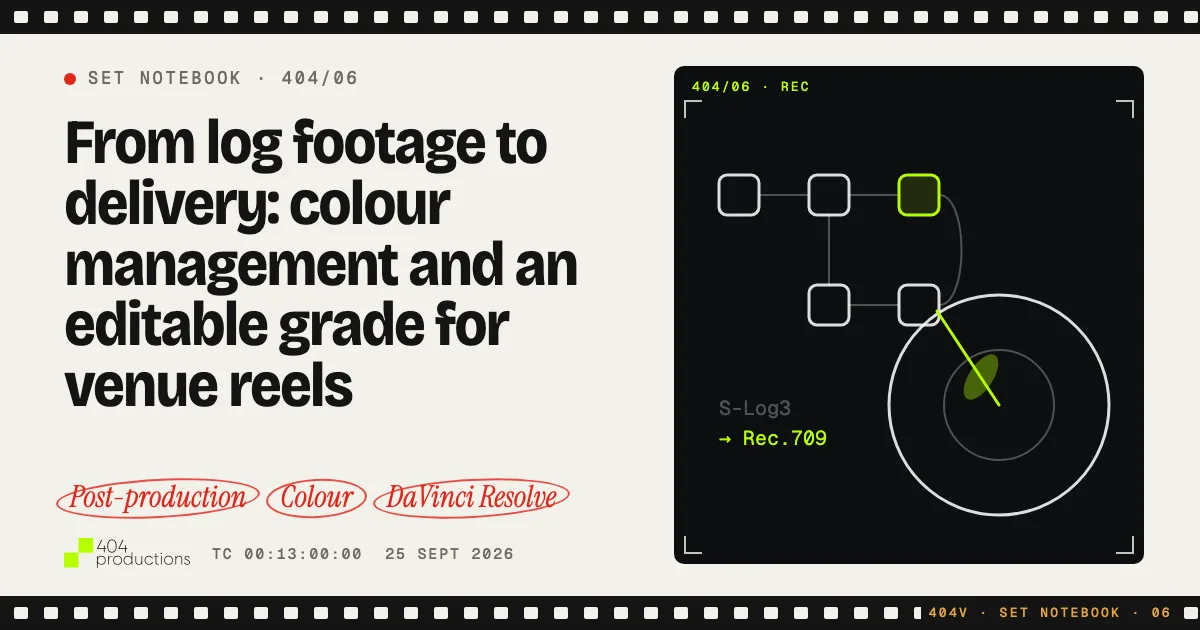
An example tree
The tree we built for a food reel, an example rather than a template:
- WB / EXPOSURE — per-shot white balance and exposure, with offset in log space.
- CONTRAST — contrast and pivot.
- HL / SHADOWS — highlight recovery, lifting shadows.
- LOOK — the shared look; a gentle curve, light colour separation.
- SUBJECT — a window or key for the hero.
- BACKGROUND — an inverted window to push the background back.
- SAT / FINAL — a last touch of saturation.
Some nodes stay empty. That isn’t a gap; it tells the editor where that step belongs. The template described on Frame.io follows a similar logic, separating tone, balance and saturation into their own nodes and keeping secondaries on a separate branch.
Hero and background: what should the grade bring forward?
Before every tree we ask two questions: what is the hero, and what has to recede?
| Case | What matters | Typical approach |
|---|---|---|
| Product or food, white-coated staff behind | Plate in front, coats behind | Window on the plate for saturation and warmth; inverted window to bring brightness and saturation down on the coats |
| Interview | Skin and consistency between angles | Exposure match, a hue-and-saturation-only skin qualifier, background slightly darker |
| Hotel room, lobby | Windows and sky not clipping | Highlight recovery window on the window, straight verticals |
| Drone | Correct D-Log M transform, sky gradient | LUT on the group pre-clip, gradient window on the sky |
| Gym, night, neon | Practical lights not blowing out | Contrast and pivot, highlight roll-off, colour slice |
The white coat is the problem we meet most often in venue reels. It is the brightest surface in the frame and the eye goes there first. Pulling the coat down half a stop usually looks more natural than brightening the plate.
How do you match shots from different cameras?
A colour group per camera
We create one colour group per camera family: Sony, DJI, iPhone. The group’s pre-clip level carries the camera-specific correction (the LUT for DJI, a small offset for a slight colour difference between two bodies). The clip tree carries per-shot balance, and the group’s post-clip level or a timeline node carries the shared look. Changing the look then happens in one place.
The skin line and a hero still
When matching shots we use two references:
- The skin line on the vectorscope. A face or a hand should sit on that line regardless of the camera. Skin at around 55–70 IRE on the output waveform is a practical starting point, not a rule.
- A hero still. We grab a still from the most important shot in the reel and compare the other shots against it side by side. The eye catches a difference far faster with two frames next to each other than by looking at each one alone.
We keep reusable trees in a PowerGrade album and client-specific grades as .drx files in the client’s asset folder. When we return to the same venue three months later, the starting point is ready.
Why does a video that looks right on a Mac look different on a phone?
This is the part of colour work that wastes the most time. A reel that looks right in Resolve can look paler or darker once uploaded to Instagram. The cause is usually not the grade but how the display and the file interpret gamma.
The settings we apply:
- “Use Mac display color profiles for viewers” on in preferences. Since the Rec.709 Scene viewer improvement in Resolve 20.2.2 we also turn on the option for viewers to match macOS ColorSync.
- Automatic Rec.709-A tagging off. Rec.709-A is a tag only Apple uses, and it gives inconsistent results in other players.
- Delivery: Rec.709 (Scene), gamma 2.4, colour tags 1-1-1 (primaries, transfer, matrix).
Most of these can only be changed by hand. They are the first things we check after moving to a new Mac or a new Resolve version.
Data levels: why do blacks come out lifted or crushed?
Most video codecs use “video levels”: in 10-bit, black is 64 and white is 940. Some files are recorded full range (0–1023). If Resolve reads a clip’s levels wrongly, blacks lift to grey or shadows get crushed.
Our rule is simple: project levels on Video, clip levels on Auto. Only when ffprobe shows color_range=pc on a file (it happens with some DJI and iPhone HEVC files) do we switch that clip to Full by hand. Mixing Light’s article also recommends leaving the clip setting on Auto in most workflows.
Before H.264: noise, sharpening and banding
Instagram and TikTok recompress whatever you upload. The grade has to account for that:
- Noise reduction before the look. Light temporal noise reduction stops the encoder spending its bits on noise. Heavy noise reduction wipes texture from food; the plate starts to look plastic.
- Keep sharpening light. Over-sharpening leaves halos around edges after compression.
- Fine grain against banding. A plain wall, a stainless steel counter or a clear sky can step visibly in H.264. A very fine grain breaks those gradients up.
- Check for shake before grading. Stabilising zooms the frame, so stabilise first, then grade. Rolling-shutter jello is not fixed by stabilising; we shorten or replace that shot.
Audio levels, encoding settings and the quality check before delivery are a separate subject; we cover them in reel finishing and QC.
Performance: where should cache and proxies live?
As of September 2026 our archive holds 718 shoot days for 93 brands, 745 reels and 44.8 TB of material. At that scale the raw footage lives on network storage, but Resolve’s cache, proxies and project database always sit on the local SSD. From 4K S-Log3 or H.265 we make half-resolution ProRes proxies and link them; renders always use the original files. For heavy nodes such as noise reduction we enable node caching.
A colour checklist before delivery
- Every clip has the right input colour space: S-Log3, Apple Log, HLG or the D-Log M LUT.
- The D-Log M LUT sits on the colour group’s pre-clip node; the brightest sky shot was checked for clipping.
- Exposure and white balance were set in log space, with offset.
- Every node has a name; the LUT is only one step.
- Graphics and type are on their own track, not underneath the grade.
- The hero comes forward; white coats, windows or sky don’t steal attention.
- Skin sits on the skin line; shots were compared against the hero still.
- Clip data levels on Auto; only
color_range=pcfiles set to Full. - Light noise reduction, restrained sharpening, fine grain where needed.
- Delivered as Rec.709 (Scene), gamma 2.4, tags 1-1-1; no Rec.709-A.
- The file was opened and checked on a phone, in the real app.
This checklist exists so that your venue’s footage stays as editable a year from now as it is today. You can see how we work from shoot to delivery on our services page, or get in touch about your own venue.
Frequently asked
Do you really need to shoot log for social media video?
A log profile compresses the bright and dark parts of a scene into the recording. A table in front of a window, kitchen lights or a sunset sky come through unclipped, and white balance, exposure and contrast can be decided in the edit. The price is that every clip has to be transformed correctly through colour management.
Resolve Color Management or CST nodes in DaVinci Resolve?
Both use the same maths and give the same image when set up correctly. The difference is workflow: RCM moves the transforms into project settings and clip attributes, while the CST method keeps every transform as a visible node. We use RCM with DaVinci Wide Gamut / Intermediate for new projects and leave older CST-based projects as they are.
How do you convert DJI D-Log M footage in Resolve?
Resolve's built-in D-Log option is not correct for D-Log M and over-saturates the image. We use the D-Log M to Rec.709 LUT that DJI publishes for each device, place it on the pre-clip node of a colour group for the drone clips, and test it on sky-heavy shots first.
Why does my Resolve export look washed out or darker on Instagram?
Usually the Mac display's gamma interpretation and the colour tags written into the file disagree. Delivering Rec.709 (Scene), gamma 2.4 with 1-1-1 tags, and avoiding the Rec.709-A tag, closes most of the gap between the Mac and the phone.
Why isn't a single LUT enough for a grade?
A single LUT locks exposure, white balance, contrast and look into one file. When the shot changes or the client wants the dessert a little warmer, it cannot be reopened. In labelled nodes every decision sits in its own place and can be changed.
Sources
What this piece draws on
- blog.frame.ioFrame.io Insider: Should You Use Resolve Color Management or CSTs?
- blog.frame.ioFrame.io Insider: A New Approach to Grading Color in DaVinci Resolve
- dji.comDJI LUT Official Download
- mixinglight.comMixing Light: Data Levels or Video Levels — How To Choose Wisely
- newsshooter.comNewsshooter: DaVinci Resolve 20.2.2 Update